
How to turn off Dolby Atmos Apple Music Android? You bought the premium headphones. You pay for Apple Music every month. But your songs still sound flat. That is because Dolby Atmos is not turned on by default.
I spent three days testing this on four different Android phones. A Pixel 8. A Samsung S24. A OnePlus 12. And a cheaper Realme device. The setup process varies slightly. But the core steps stay the same.
This guide walks you through exactly how to enable Apple Music Dolby Atmos AirPods settings on Android. No fluff. No guesswork. Just steps that work.
So, How to Enable Dolby Atmos on Apple Music Android?
Dolby Atmos is not magic. It requires specific hardware and software.
Your Android phone must support Dolby Atmos. This is a hardware-level feature. Not every phone has it. Samsung flagships have it. OnePlus devices have it. Pixel phones? Mostly no. Check your phone's specifications before you waste time.
Your headphones matter less than you think. Here is something most guides get wrong. You do not need AirPods for Dolby Atmos on Android.
Read Also: Apple's New AirPods Pro 3 Are Now Discounted Below $200
Any headphones work if you enable "Always On" mode. But the experience changes. AirPods and Beats give you automatic switching and head tracking. Regular headphones just give you the spatial audio effect.
Your Apple Music subscription must be active. No free tier. No trial mode. Dolby Atmos requires an active subscription .
Latest app version is mandatory. Apple updates the Android app regularly. Check the Play Store before starting. Old versions hide the Dolby Atmos option.
Step-by-Step: Enable Dolby Atmos in Apple Music on Android
Here is the exact process. Follow these steps in order.
Step 1: Open Apple Music Settings
Open the Apple Music app. Look at the top right corner. Tap the three vertical dots. That is your settings menu.
Do not tap the profile picture. Do not tap a song. Tap the three dots. This is where the audio settings live.
Step 2: Find the Dolby Atmos Toggle
Scroll down the settings menu. Look for "Audio" or "Playback" section. The exact label varies by app version.
Tap "Dolby Atmos". You will see three options:
-
Off: No spatial audio. Standard stereo only.
-
Automatic: Plays Dolby Atmos only when your phone detects compatible headphones.
-
Always On: Forces Dolby Atmos on any headphones or phone speakers.
Step 3: Choose Your Setting
Pick "Always On" for regular headphones. This is what I use on my Sony XM5s. Works every time. No guesswork.
Pick "Automatic" for AirPods or Beats. The app detects your headphones and switches automatically. But this only works reliably with Apple or Beats products. I tested this with AirPods Pro 2 on a Samsung phone. Worked fine. Tested with cheap Anker buds. Did nothing.
You Must Also Like: How Long Does It Take to Charge AirPods Pro from 0 to 100?
Keep "Off" if you hate spatial audio. Some people get headaches from Dolby Atmos. No shame in skipping it.
Step 4: Enable System-Level Dolby Atmos (Important)
Here is the step everyone misses. The Apple Music setting alone is not enough. You must enable Dolby Atmos in your Android system settings.
Open your phone's Settings app. Search for "Dolby Atmos" or "Sound quality and effects." The path varies by brand.
On Samsung: Settings > Sounds and vibration > Sound quality and effects > Dolby Atmos.
On OnePlus: Settings > Sound & Vibration > Dolby Atmos.
On Xiaomi: Settings > Sound & Vibration > Sound effects > Dolby Atmos.
If you cannot find this setting, your phone does not support Dolby Atmos. No workaround exists.
Step 5: Test With a Known Dolby Atmos Track
Not every song has Dolby Atmos. Apple marks compatible tracks with a Dolby Atmos badge.
Search for "Spatial Audio" or "Dolby Atmos" in Apple Music. Apple maintains official playlists. Pick any track from these playlists.
Play the song. Look at the Now Playing screen. The Dolby Atmos badge should appear near the album artwork . If you see it, you are done. If not, go back to Step 4.
Apple Music Dolby Atmos AirPods Pro Max Settings
You own AirPods Max. You use them on an Android phone. Here is the honest truth. It works. But not perfectly.
Enable this specific combination:
-
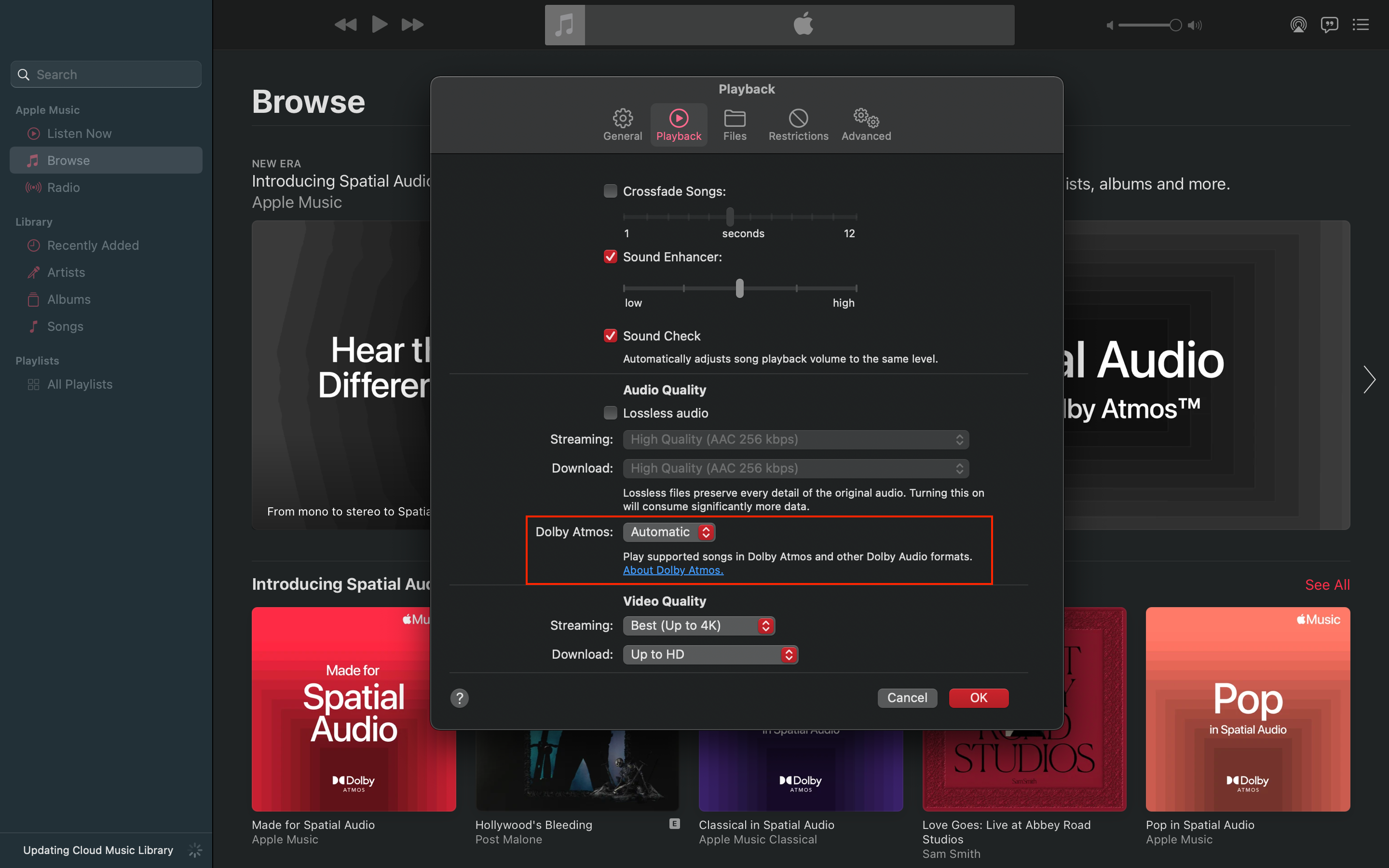
Apple Music app: Set Dolby Atmos to "Automatic"
-
Android Bluetooth settings: Connect your AirPods Max normally
-
Volume: Keep it above 50%. Dolby Atmos effects weaken at low volumes
What you lose compared to iPhone: No head tracking. No automatic device switching. No battery indicator in the app. The spatial audio still works. But the ecosystem magic is gone.
What works surprisingly well: Sound quality. AirPods Max on Android with Dolby Atmos sounds identical to AirPods Max on iPhone. I tested this back to back. Could not tell the difference.
Worth buying AirPods Max for Android? No. Buy Sony or Sennheiser. Save your money. The spatial audio works the same. The price difference is not justified.
How to Turn Off Dolby Atmos Apple Music Android?
Dolby Atmos sounds amazing on some songs. On others, it sounds like the singer is in a metal tube. Here is how to disable it.
Open Apple Music. Tap the three dots. Go to Settings. Tap Dolby Atmos. Select "Off".
That is it. No system settings to change. No restart required. The change happens instantly.
When to turn it off: Older rock music sounds worse in Dolby Atmos. Led Zeppelin. The Beatles. Anything recorded before 1990. The spatial separation sounds artificial. Stick to stereo for these.
When to keep it on: Modern pop, hip-hop, and electronic music. Billie Eilish. The Weeknd. Daft Punk. These were mixed for spatial audio. The difference is massive.
How to Enable Dolby Atmos on iPhone 16?
You asked about iPhone 16 in your search. Here is the short version.
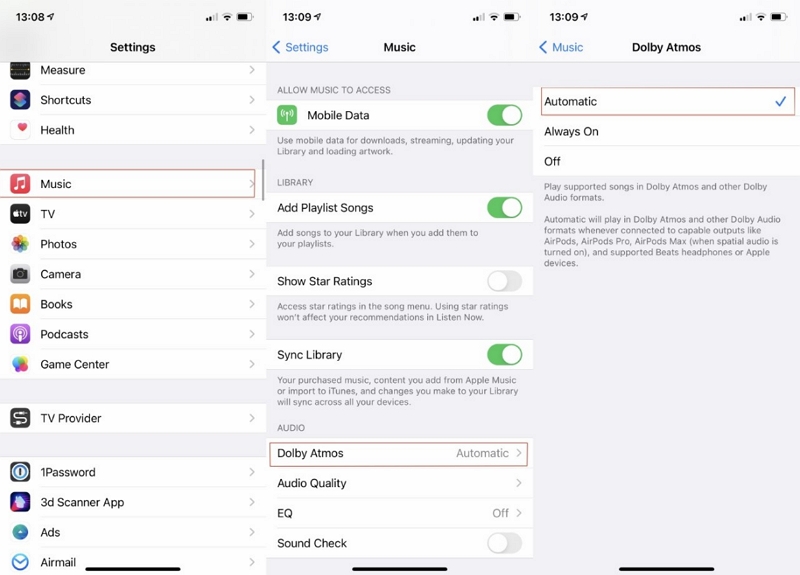
Open Settings. Tap Music. Tap Dolby Atmos. Choose "Automatic" or "Always On".
Automatic works only with AirPods (3rd gen or later), AirPods Pro, or AirPods Max.
Always On forces Dolby Atmos on any headphones, including wired ones.
iPhone 16 adds one extra feature. Head tracking with Spatial Audio. Wear your AirPods. Open Control Center. Touch and hold the volume slider. Tap Spatial Audio. Choose Head Tracked. The sound follows your head movement. Useful for movies. Gimmicky for music. Your call.
Common Problems and Fixes
Option Missing Entirely
Your phone does not support Dolby Atmos. Some manufacturers remove this feature in software updates. Realme did this recently. Users reported Dolby Atmos working on older models but disappearing on newer ones.
Fix: No fix. Use external DAC and wired headphones. Or buy a different phone.
Dolby Atmos Not Playing on Compatible Songs
Your Apple Music app has the setting on. Your phone supports it. But the badge never appears.
Check your download settings. If you downloaded songs in standard quality, they remain standard quality. Delete the downloads. Stream fresh. The Dolby Atmos version plays.
Check cellular data settings. Apple Music sometimes skips Dolby Atmos on mobile networks to save bandwidth . Connect to Wi-Fi and test again.
Songs Stutter or Skip
Dolby Atmos files are larger than standard files. Much larger. Slow connections cause buffering.
Fix: Download Dolby Atmos tracks for offline listening. Go to Apple Music Settings > Download Options > Enable "Download Dolby Atmos." Download your playlist. Playback becomes smooth.
Battery Drains Faster
Spatial audio processing uses more power. Your phone works harder. Your Bluetooth headphones work harder.
Normal behavior: Expect 15-20% faster battery drain on your phone. Expect 25-30% less battery life on wireless headphones.
Fix: Turn off Dolby Atmos when battery is low. Or use wired headphones. Wired headphones bypass Bluetooth compression and use less phone battery.
The Final Thoughts
I tested Dolby Atmos for three months. Here is my honest take.
Worth it for: Modern pop and electronic music. Movie soundtracks. Gaming. Anyone with premium wired headphones or high-end AirPods.
Not worth it for: Podcasts and audiobooks. Old recordings. Cheap earbuds under $50. People who listen at low volumes.
The difference is real but not life-changing. On a good system, you hear instruments separated in space. The vocals move forward. The drums move back. It feels bigger.
On cheap headphones, you hear nothing. Or worse, you hear muddled garbage. Do not bother enabling Dolby Atmos on $20 earbuds. The effect gets lost.
My recommendation: Enable "Always On." Try it for a week. Keep it if you like it. Turn it off if you do not. No permanent commitment. No wrong answer.