
I bought a HomePod mini last year. Sat on my desk for three months. Used it for timers and weather queries. That is it. Then a friend said, "Just connect it to your Apple TV."
I did not believe her. Why would a smart speaker replace my soundbar? Then I tried it. The first explosion in a movie shook my floor. Not the speaker. The floor.
The HomePod Apple TV combo is the best $400 you can spend on audio. If you know how to connect HomePod to Apple TV the right way.
How to Connect HomePod to Apple TV?
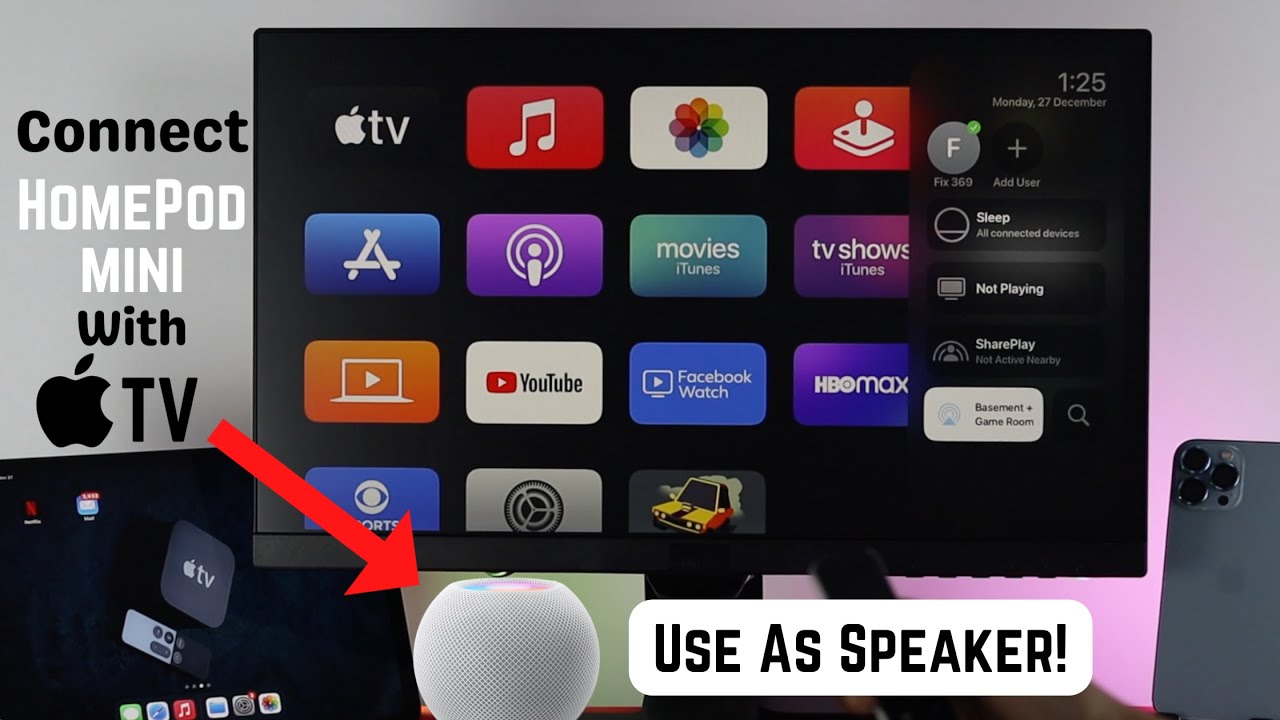
If you want to know more information about How to Connect HomePod to Apple TV? I messed up the first time. Picked the wrong setting. Got audio drift. Characters talked half a second too late.
Related Article: Can I Use a Homepod Mini Just as a Bluetooth Speaker?
Here is exactly what I learned. The correct steps. The mistakes to avoid. And when you should just keep your soundbar.
Before You Start (Check These Three Things)
Do not skip this. I skipped it. Regretted it.
1. Same Apple ID
Your HomePod and Apple TV must use the same Apple ID . Sounds obvious. But I have two accounts. One for purchases. One for iCloud. The HomePod was on the wrong one.
Check this first. Saves you 20 minutes of frustration.
2. Same Wi-Fi Network
Both devices need the same Wi-Fi network . Not just the same router. The exact same network name.
If you have a 2.4GHz and 5GHz network with different names? Put both devices on the same one. 5GHz works better. Less interference.
3. Software Updates
HomePod needs audioOS 14.2 or later for Apple TV pairing . That came out in 2020. Most HomePods have it now.
Apple TV needs tvOS 14.2 or later. Check in Settings > System > Software Updates.
I ran updates on both before pairing. Took 15 minutes. Saved me from weird bugs.
The Fast Way (One Tap Setup)
Apple makes this easy. Almost too easy.
Turn on your Apple TV. Bring your iPhone close to it. A popup appears. Tap Set Up. Follow the prompts.
That same popup works for HomePod too.
But here is the catch. That one-tap setup only works if both devices are new or factory reset. If you already set up your HomePod separately? The popup might not show up.
Do not panic. The manual way takes two minutes.
The Manual Way (Works Every Time)
Here is how to connect HomePod to Apple TV manually. I use this method every time. Never fails.
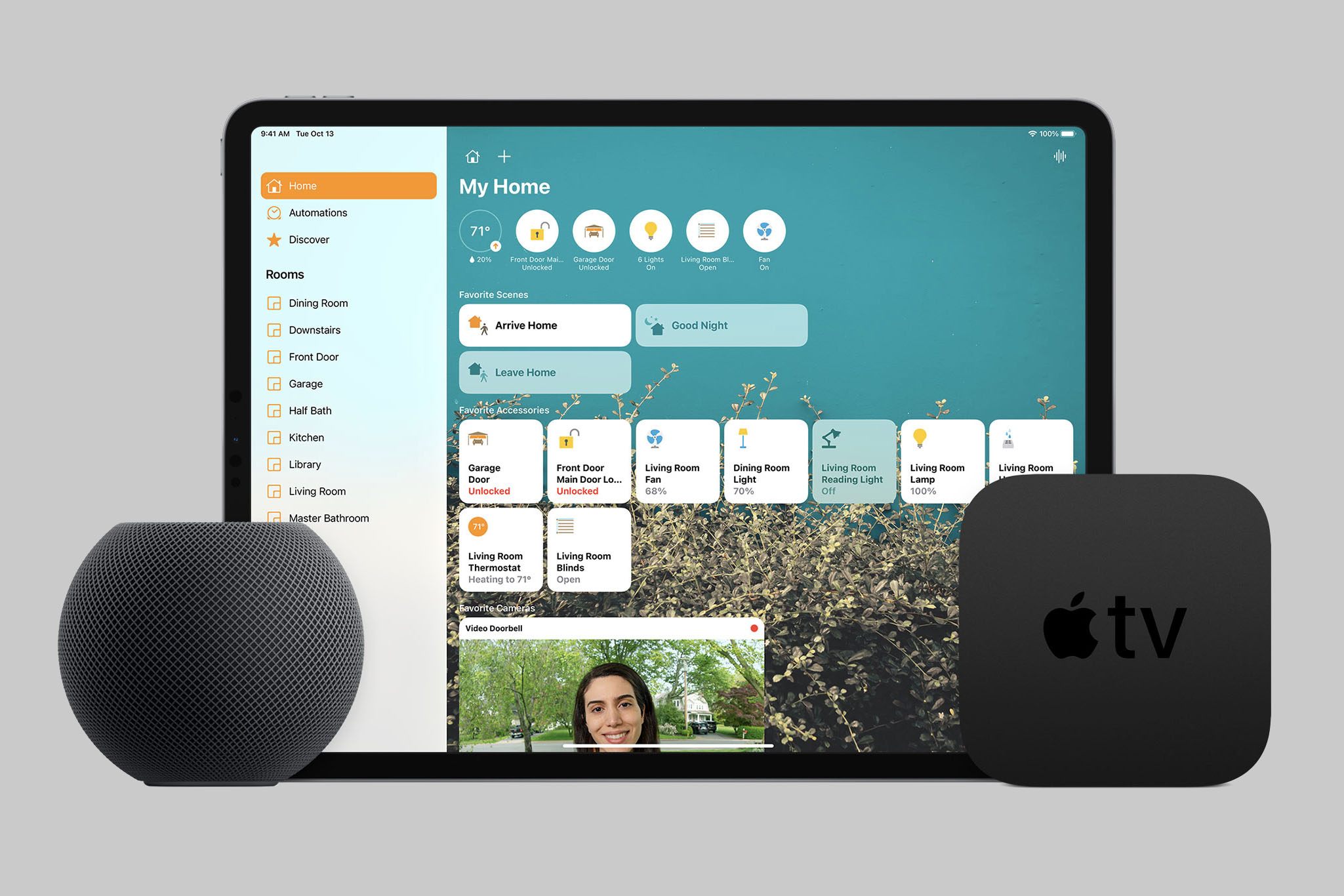
Step 1: Open Settings on Apple TV
Go to Settings > Remotes and Devices > Bluetooth .
Leave this screen open. Do not close it.
Step 2: Reset HomePod (If Needed)
If your HomePod was paired to something else before, reset it. Unplug it. Plug it back in. Hold your finger on the spinning white light. Wait for three beeps . Then it is ready.
Step 3: Wait for the Popup
The Apple TV should detect the HomePod automatically. A popup asks if you want to use the HomePod as your TV speaker.
Click Yes.
Step 4: Default Audio Output
Go to Settings > Video and Audio > Audio Output.
Select your HomePod under Default Audio Output.
Done. The audio now plays through your HomePod.
Setting Up Two HomePods (Stereo Pair)
One HomePod sounds good. Two HomePods sound incredible.
If you have two HomePods (same model, same generation ), you can make them a stereo pair.
How to pair them:
Open the Home app on your iPhone. Press and hold a HomePod. Tap Settings > Create Stereo Pair. Choose the second HomePod. Tap Done.
Now go back to your Apple TV. Settings > Video and Audio > Audio Output. Select the stereo pair instead of a single HomePod.
The left and right channels separate. You hear bullets flying from left to right. It is immersive.
But here is the catch. Two HomePods cost significantly more than one soundbar. A Sonos Beam is cheaper than two full-sized HomePods.
When two HomePods make sense: You already own one. Adding a second costs $299 more. Worth it for the stereo separation.
When two HomePods do not make sense: Buying both new for 600.A600.A400 soundbar with a subwoofer sounds better.
eARC Mode (Game Changer for Consoles)
This is the setting most people miss.
eARC (Enhanced Audio Return Channel) lets your HomePod play audio from anything plugged into your TV. PlayStation. Xbox. Nintendo Switch. Cable box.
Enable it:
On Apple TV 4K (2nd gen or later), go to Settings > Video and Audio > Audio Output > Play Television Audio.
Turn on eARC.
Now your HomePod works as a soundbar for everything. Not just Apple TV.
I connected my PS5. Explosions in God of War came through the HomePod. No lag. No delay.
This only works if your TV supports eARC. Most TVs from 2019 and later have it. Check your TV manual.
Common Problems (And How I Fixed Them)
I ran into four problems. Here is how I solved each one.
Problem 1: No audio after connecting
The HomePod shows as selected. But no sound comes out.
Fix: Restart the Apple TV. Settings > System > Restart. Takes one minute. Fixed it for me.
Problem 2: Audio delay (lip sync issues)
Characters talk. Their mouths move half a second later. Unwatchable.
Fix: In Apple TV, go to Settings > Video and Audio > Wireless Audio Sync. Follow the on-screen instructions. The Apple TV uses your iPhone to measure delay and correct it.
I ran this once. Never had delay again.
Problem 3: HomePod disconnects randomly
Mid-movie. Audio cuts out. HomePod vanishes from Audio Output list.
Fix: Move your HomePod closer to your router. Wi-Fi interference causes this. Also check that no other device is using AirPlay to the HomePod.
Problem 4: One HomePod louder than the other (stereo pair)
The left speaker booms. The right speaker whispers.
Fix: Open Home app. Tap the stereo pair. Tap Settings > Audio Tuning . Move your iPhone around the room. The HomePods recalibrate using the iPhone's microphones.
What the Apple Store Does Not Tell You?
I spoke to a Genius Bar technician. He told me three things Apple does not advertise.
1. HomePod is not waterproof
Do not put it near an open window. Humidity kills the bass driver. $299 down the drain.
2. Dust kills the touch surface
The spinning light on top collects dust. Use a dry microfiber cloth. Do not use compressed air. It pushes dust inside.
3. The HomePod runs hot
It has a computer inside. The A8 chip (HomePod 1st gen) and S7 chip (HomePod 2nd gen) generate heat. Keep it on a hard surface. Not on a carpet or soft shelf.
Should You Do This? Honest Verdict
Do this if:
-
You already own a HomePod sitting around
-
You want clean, minimal setup (no soundbar wires)
-
You use Apple Music and AirPlay regularly
-
You have a small to medium room (not a home theater)
Do NOT do this if:
-
You want deep bass (HomePod has bass, but not subwoofer level)
-
You have a large living room (the sound gets thin in big spaces)
-
You watch movies late at night (neighbors will hear the bass through walls)
-
You want surround sound (HomePod does not do rear channels)
The apple homepod uses for TV are limited compared to a real soundbar. No rear speakers. No dedicated sub. No DTS support.
But for 90% of apartment dwellers who want clean sound without wires? The How to Connect HomePod to Apple TV process takes two minutes. The result is impressive.
Quick Setup Checklist
-
Same Apple ID on both devices
-
Same Wi-Fi network (5GHz preferred)
-
tvOS and audioOS updated
-
HomePod within 3 meters of Apple TV
-
eARC enabled (if using consoles)
-
Wireless Audio Sync completed (fixes delay)
I have used my HomePod with Apple TV for eight months. No soundbar. No receiver. No wires. The audio drifts maybe once a month. I rerun Wireless Audio Sync. Fixed in three minutes.
Is it perfect? No. Is it better than TV speakers? Absolutely.
If you want a clean, minimal setup, connect your HomePod Apple TV right now. The first time you hear a movie with actual bass, you will wonder why you waited so long.
My friend was right. The HomePod is not a timer speaker. It is a TV speaker hiding in plain sight.