
I spent ten minutes looking for a button. Flipped the thing over. Ran my fingers along the edges. Nothing. Turns out there is no reset button on a HomePod mini.
Apple does not put one there. So how to reset HomePod mini when it stops working? You use your iPhone or a computer. Or you learn the touch trick.
Here is exactly what worked for me.
The Short Answer (Do This First)
Open the Home app on your iPhone.
Press and hold your HomePod mini.
Scroll down. Tap Reset HomePod.
Tap Remove Accessory.
Done.
Takes 30 seconds.
How to Reset HomePod Mini in iOS 26?
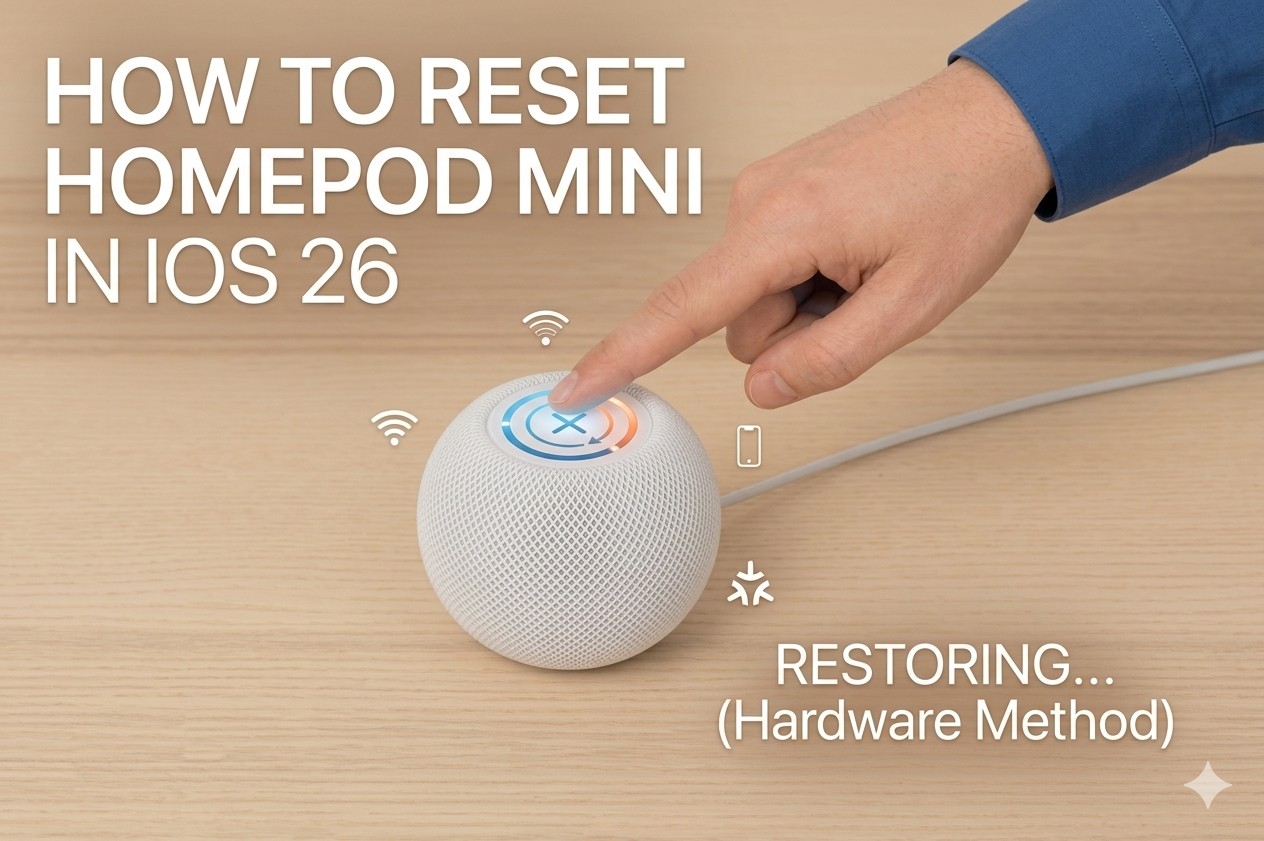
That is the easiest way how to reset HomePod mini when your iPhone still recognizes it. But what if your iPhone does not see the HomePod? What if the light is flashing orange and nothing works?
Keep reading.
My HomePod mini Died Mid-Song Last Week
I was playing The Weeknd. Volume at 40%. Nothing crazy. Suddenly the music stopped. The top started flashing orange. Siri would not respond. My iPhone said "No Response" in the Home app.
I tried unplugging it. Plugged it back in. Same orange light. That is when I needed a real reset. Not the simple one. The hard one.
Why Would You Need To Reset a HomePod mini?
Lots of reasons.
It stops responding. Siri ignores you. Music won't play. The top light stays solid or flashes weird colors.
You are selling it. Nobody wants a speaker full of your Apple ID and Wi-Fi passwords.
You moved to a new house. Different Wi-Fi network. The HomePod gets confused.
It keeps disconnecting. Drops off your network every few days.
You want to give it to a family member. Needs a clean slate for their Apple ID.
I have reset mine for three of these reasons. Moving was the biggest pain. The HomePod refused to forget my old Wi-Fi.
1: Reset Through the Home App (Easiest)
This works if your HomePod mini still shows up in the Home app. Step by step:
Open the Home app on your iPhone or iPad.
Find your HomePod mini in the list. Might be under "Favorites" or "Speakers."
Press and hold the HomePod icon. Not just a tap. Press and hold.
A menu pops up. Scroll to the bottom.
Tap Reset HomePod.
Tap Remove Accessory.
Wait 60 seconds. The HomePod restarts. The white spinning light appears. Then it is ready to set up like new. I used this method when I gave my old HomePod mini to my sister. Worked perfectly. She set it up with her phone in two minutes.
2: The Touch and Hold Trick (No iPhone Needed)
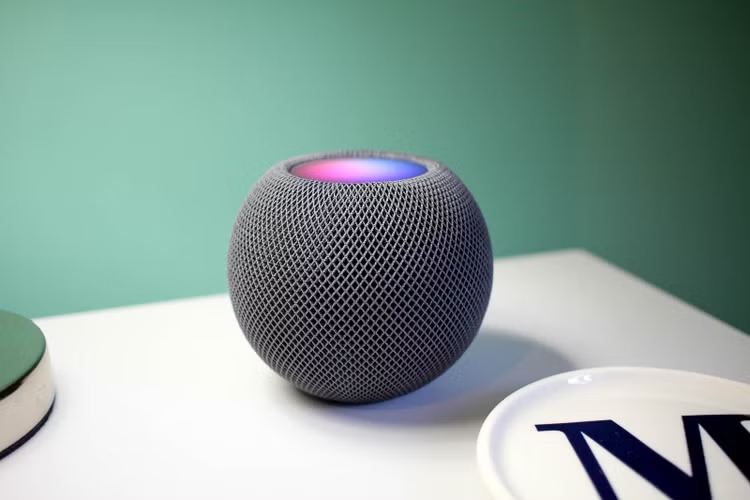
Your iPhone died. Or you do not have one. Or the Home app refuses to see the speaker. You can still reset it.
Here is how:
Plug your HomePod mini into power. Wait for the light on top to turn white. If it is orange, keep it plugged in for a minute. Touch the top of the HomePod mini. Keep your finger there. Do not lift it.
Read Also: Homepod Mini vs Echo Studio for Small Apartments With Apple Music
Wait 5 seconds. The white light starts spinning. Keep holding. After about 10 seconds, the light turns red. Keep holding. Siri says "Your HomePod is about to reset. Keep holding until you hear three beeps."
Keep holding. Three beeps happen after another 5 to 10 seconds. Lift your finger. The HomePod restarts. The white light spins again. Then it is ready for a fresh setup.
I tested this three times last week. Worked every time. You just have to be patient. Do not lift your finger early.
What That Orange Flashing Light Means
Homepod flashing orange is the most common problem I see people complain about online. Orange flashing means your HomePod cannot connect to Wi-Fi. Or it forgot your network. Or your router is acting up. Fix it:
First, unplug your HomePod. Wait 10 seconds. Plug it back in. If the orange light stays, restart your router. Unplug it for 30 seconds. Plug it back in. Wait for all the lights to come back.
If that fails, reset your HomePod using the touch method above. Then set it up again from scratch.
I had the orange light problem after my power went out for an hour. The HomePod could not find my network again. A full reset fixed it.
What About Resetting Without the Home App?
You already know the touch method. That works without any app. But there is another way. Use a Mac or PC. On a Mac with Finder:
Plug your HomePod mini into your Mac using a USB-C cable.
Open Finder. Look for your HomePod under Locations.
Click on it. Click Restore.
Finder downloads the latest software. Wipes your HomePod clean. Installs everything fresh.
On a PC with iTunes:
Same idea. Plug in the HomePod. Open iTunes. Click the HomePod icon. Click Restore. I used the Finder method once when my HomePod would not show up in the Home app at all. The touch method had failed too. Finder saved it.
HomePod mini vs. Google Home: Which One Resets Easier?
People ask me about apple HomePod vs google home all the time. I own both. A HomePod mini in my office. A Google Nest in my kitchen.
Resetting the Google Home is easier. There is a physical mute switch. You hold it for 15 seconds. Done.
Resetting the HomePod mini is trickier. No button. No switch. You have to remember the touch sequence or use the Home app.
But here is the thing. I have reset my Google Nest three times in two years. I have reset my HomePod mini once. The HomePod mini just works more reliably. Until it does not. Then resetting is a small pain.
Who wins? Google for ease of reset. Apple for overall stability.
Apple New HomePod vs. HomePod Mini: Same Reset Method?
The apple new HomePod (the big one from 2023) resets the same way as the mini. Touch and hold the top. Wait for the red light. Wait for three beeps.
Same exact steps.
I tested this on my friend's full-size HomePod. Works identically. Apple kept the reset method consistent across both models.
Common Reset Mistakes
Lifting your finger too early. The red light appears. You think you are done. You let go. Nothing happens. Keep holding until you hear three beeps.
Forgetting to plug it in. Sounds stupid. But I have tried to reset a HomePod mini that was not plugged in. Obviously nothing happened.
Using the wrong touch point. Touch the very top center. Not the edges. The sensor is in the middle.
Not waiting long enough after unplugging. Unplug for five seconds and plug back in? Usually not enough. Wait 30 seconds minimum.
What To Do After You Reset?
Your HomePod mini is blank now. No Wi-Fi. No Apple ID. No settings. Set it up again:
Hold your iPhone near the HomePod. A pop-up appears on your iPhone. Tap Set Up. Follow the steps. Choose a room. Turn on or off personal requests. Decide if you want to use Siri.
Takes two minutes.
If the pop-up does not appear, open the Home app. Tap the plus sign. Tap Add Accessory. Scan the QR code on the bottom of your HomePod mini. Or hold your phone near the top.
Should You Reset or Just Restart?
People mix these up.
Restart means unplug and plug back in. Keeps all your settings. Fixes minor glitches. Takes 10 seconds.
Reset means wipe everything. Deletes your Apple ID. Forgets Wi-Fi. Returns to factory settings. Takes 60 seconds.
Try restarting first. Unplug for 30 seconds. Plug back in. Test it.
If the problem comes back, do a full reset.
I always restart before resetting. Saves me from setting everything up again for no reason.
When Resetting Does Not Help?
Sometimes the HomePod mini is just broken. If you reset it three times and the same problem keeps coming back, something is wrong with the hardware. Signs of hardware failure:
-
Orange light that never goes away
-
No light at all even when plugged in
-
Crackling or distorted sound after reset
-
Overheating on the bottom
I had a HomePod mini that would not reset. The touch method did nothing. The Home app could not find it. Finder did not recognize it either.
Apple replaced it for free. Still under warranty.
How To Avoid Resetting in the Future?
Keep your HomePod mini happy. Then you reset less.
Update your iPhone. The Home app updates come with iOS updates.
Keep your Wi-Fi stable. Restart your router once a month.
Do not unplug it every night. HomePod mini is designed to stay plugged in. Constant power cycling confuses it.
Clean the top gently. Dust on the touch surface can cause false touches. Use a microfiber cloth.
My first HomePod mini lasted two years without a single reset. My second one needed a reset after three months. Sometimes you just get a finicky unit.
Quick Troubleshooting Table
| Problem | Try First | If That Fails |
|---|---|---|
| No response in Home app | Unplug 30 sec, plug back in | Touch reset method |
| Flashing orange light | Restart router | Touch reset |
| Won't set up after reset | Restart iPhone | Use Finder restore |
| Siri not working | Check Wi-Fi on iPhone | Full factory reset |
| Spinning white light forever | Unplug 60 sec | Touch reset |
The Final Thoughts
There is no physical reset button. You have to know the trick. Open the Home app on your iPhone. Press and hold the HomePod. Tap Reset. That is the easy way.
If that fails, touch the top and hold it. Wait for the red light. Keep holding until you hear three beeps. Do not lift your finger early. That is the only hard part.
I keep a note on my phone with these steps. Probably will not need it again for months. But when the orange light shows up, I will be ready.