
I pressed play on my morning playlist last Tuesday. Nothing happened. Well, the music played. But the seamless transitions I had grown to love? Gone.
Songs ended abruptly. Dead air between tracks. That awkward silence that kills the vibe.
I had gotten used to the apple music AutoMix not working issue popping up every now and then. But this time, it felt permanent. No amount of tapping the AutoMix button seemed to fix it.
After two hours of trial and error, I finally cracked it. Nine fixes that actually work. Some obvious. Some you would never think of. Here is what I learned.
What Is AutoMix Anyway?
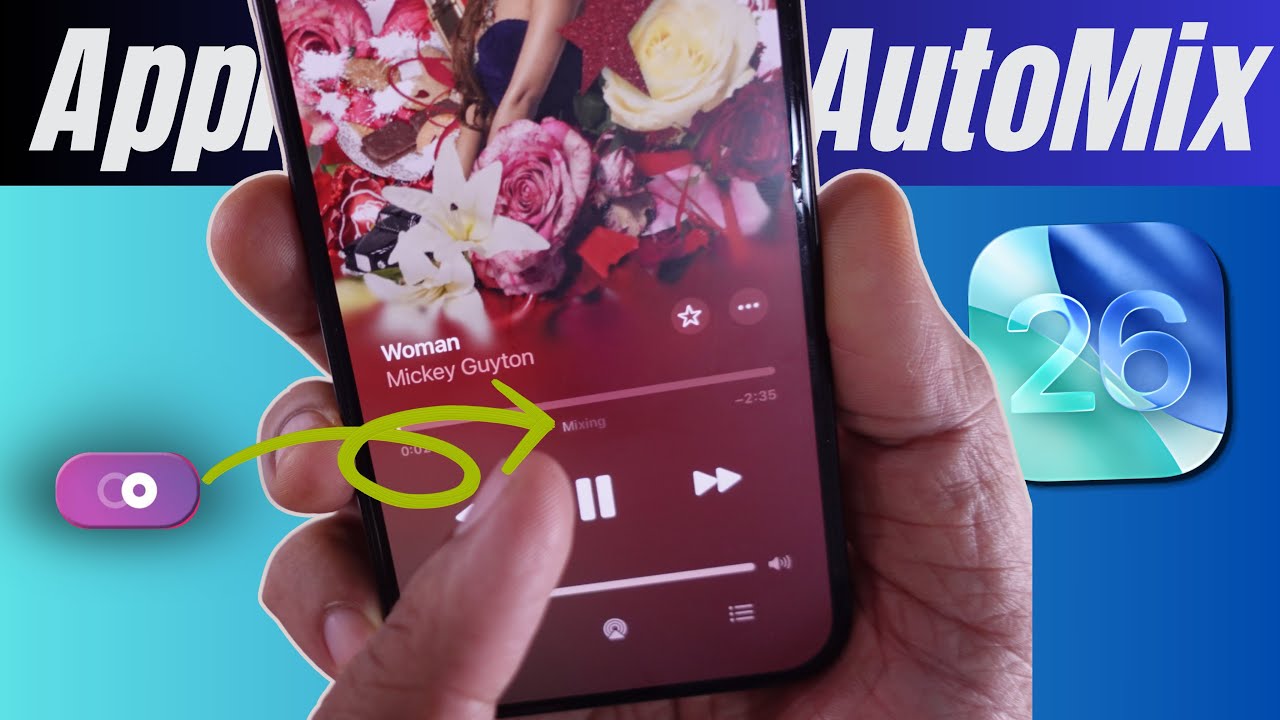
Before we dive into fixes, let us get on the same page.
AutoMix is Apple's AI-powered feature that blends songs together. It uses tempo matching and beat detection to create smooth transitions. Think of it like having a DJ in your pocket.
Read Also: Apple Music Crossfade: How to Enable It on iPhone And Mac?
The feature arrived with iOS 26. It works on iPhones, iPads, and Macs with Apple silicon. You need an active Apple Music subscription to use it. Without one, the option stays grayed out.
AutoMix works best on playlists and curated stations. Albums play normally without transitions. That is by design.
Now, let us fix it.
Fix 1: Check If AutoMix Is Actually Turned On
This sounds obvious. I skipped it too.
The first time my apple music automix not working issue appeared, I assumed it was a bug. Turns out, I had accidentally turned it off. Here is how to check.
Open Settings on your iPhone. Tap Apps. Tap Music. Look for Song Transitions. Make sure the toggle is on. Then select AutoMix under Transition Style.
On a Mac, open Apple Music. Go to Music > Settings in the menu bar. Click the Playback tab. Select Song Transitions. Choose AutoMix.
If AutoMix is grayed out, you are not subscribed to Apple Music. That is the only reason it would be unavailable.
Fix 2: Restart the Apple Music App
Sometimes the simplest fix works best.
Force close the Music app. On an iPhone without a home button, swipe up from the bottom. Hold briefly. Swipe up on the Music app card to close it.
On older iPhones, double-click the home button. Swipe up on the Music app.
Open the app again. Test AutoMix.
This clears temporary glitches. I have fixed the apple music AutoMix not working problem more than once with just this step.
Fix 3: Restart Your Device
If force-closing the app does not work, restart the whole device.
Hold the side button and either volume button. Slide to power off. Wait a few seconds. Turn it back on.
This refreshes system processes. It clears out memory issues that might block AutoMix from working.
I tried this after the app restart failed. It worked instantly.
Fix 4: Sign Out and Back Into Apple Music
Account sync issues can break AutoMix.
You Must Also Like: Apple Music Lossless Audio: Setup, Quality And Features
Open Settings. Tap your Apple ID at the top. Scroll down and tap Sign Out. Enter your Apple ID password when prompted.
Wait a moment. Sign back in.
This forces a fresh sync of your library and subscription status. It often resolves deep account-related problems.
Fix 5: Check What You Are Playing
AutoMix does not work on everything.
It is designed for playlists and standard library albums. Single tracks, downloaded podcasts, and internet radio stations bypass the feature.
Albums play without transitions. That is intentional. Apple wants you to hear albums as the artist intended. Uploaded music from your library does not work. Neither do purchased iTunes Store songs.
If your apple music AutoMix not working, check what you are playing. Switch to a playlist. See if that fixes it.
Fix 6: Turn Off Crossfade
Crossfade and AutoMix do not play well together.
Crossfade fades songs in and out over a set number of seconds. AutoMix uses AI for intelligent transitions. When both are active, they conflict.
Go to Settings > Apps > Music > Song Transitions. If Crossfade is selected, switch to AutoMix. Or turn Song Transitions off completely.
This fixed the issue for one user who had Crossfade enabled without realizing it.
Fix 7: Disable Lossless Audio
Lossless audio and AutoMix do not mix well.
Apple does not support crossfade for lossless audio. The same seems to apply to AutoMix in some cases.
Go to Settings > Music. Tap Audio Quality. Turn off Lossless Audio.
Test AutoMix again. If it works, you have found the culprit.
Fix 8: Turn Off AirPlay
AirPlay can interfere with AutoMix.
If you are streaming to a HomePod or other AirPlay device, AutoMix might not work properly.
Disconnect from AirPlay. Play music directly on your device. See if AutoMix starts working.
One user reported that AutoMix worked fine on their iPhone but failed when streaming to a HomePod. The fix was simple. Use AirPlay from a device that supports AutoMix.
Fix 9: Clear the Music App Cache
This one is for Mac users.
Close the Apple Music app completely. Open Finder. Select Go > Go to Folder in the menu bar. Enter the cache path ~/Library/Caches/.
Delete the Apple Music cache files. Restart the app.
This has fixed AutoMix and Crossfade issues for some users. It does not delete your saved music preferences.
How to Turn Off AutoMix on Apple Music?
Not everyone wants AutoMix. Some people find the transitions jarring.
Here is how to turn it off.
Method 1: In the Music app
Open Apple Music. Start playing a song. Tap the Now Playing bar at the bottom. Tap the Up Next button (looks like three lines). Find the AutoMix button (two overlapping circles). Tap it to turn it off.
Method 2: In Settings
Open Settings > Apps > Music > Song Transitions. Turn Song Transitions off. Or select Crossfade instead of AutoMix.
AutoMix stays off until you turn it back on.
How to Turn On AutoMix on Apple Music?
If you want to give AutoMix another shot, here is how to enable it.
Open Settings > Apps > Music > Song Transitions. Toggle on Song Transitions. Select AutoMix under Transition Style.
On a Mac, go to Music > Settings > Playback. Select Song Transitions. Choose AutoMix.
You can also turn it on in the Up Next queue while music is playing.
Why AutoMix Might Not Work on Your Device?
AutoMix has some limitations.
It requires iOS 26, iPadOS 26, or macOS Tahoe. Older operating systems do not support it.
It only works on Macs with Apple silicon. Intel-based Macs do not get AutoMix.
It does not work on Apple TV, Apple Watch, HomePod, or Android devices. Not yet anyway.
If you are on an older device or operating system, that is why your apple music AutoMix not working.
What to Do If Nothing Works?
Sometimes none of these fixes help.
One user reported that AutoMix stopped working entirely in March 2026. Songs got skipped. Playback stopped randomly. Logging out and back in helped temporarily.
If you are in that situation, try these last-resort options.
Update your device. The latest iOS version might have a fix.
Reinstall the Music app. On some devices, you can delete and reinstall.
Contact Apple Support. They might have a solution specific to your device.
A Personal Note
I have been using AutoMix since iOS 26 launched. Most of the time, it works beautifully. The transitions feel natural. The beat matching is impressive. But when it breaks, it breaks hard.
The apple music AutoMix not working issue has frustrated me more times than I care to admit. Each time, one of these fixes has saved the day.
My go-to is Fix 2 (restart the app) and Fix 3 (restart the device). They work 80% of the time. If those fail, Fix 4 (sign out and back in) usually does the trick.
The key is patience. Try one fix at a time. Test after each one. Do not do everything at once. You will not know what actually worked.
Final Thoughts
AutoMix is a great feature when it works. The seamless transitions make playlists feel alive. The AI-powered blending creates a DJ-like experience.
But it is not perfect. It breaks. It conflicts with other settings. It does not work on all content. The good news is that most issues are fixable. The nine fixes above cover nearly every scenario.
Start with the simple ones. Restart the app. Restart the device. Check your settings. Move to the more involved ones if needed. Sign out and back in. Clear the cache. Disable lossless audio.
If nothing works, check your device compatibility. Maybe your device simply does not support AutoMix. Either way, you now have a roadmap. No more guessing. No more frustration.
Just smooth, seamless transitions. The way Apple intended.